
Registering guidelines for app settings
This article explains how to register guidelines for the AI App Settings Review feature. The guidelines should include rules and criteria for reviewing app settings.
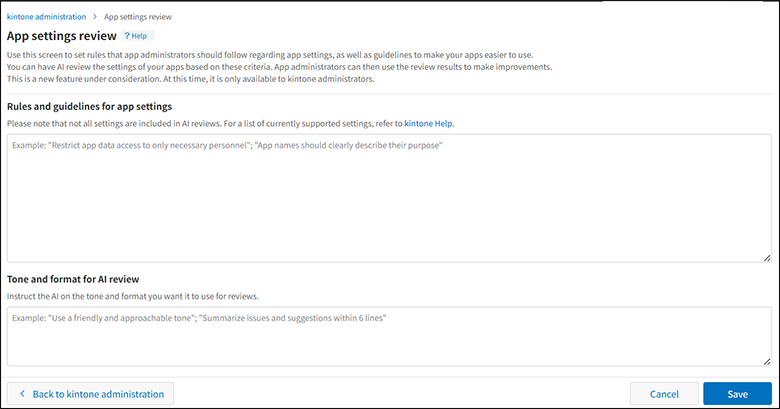
App setting guidelines can only be registered by kintone administrators. The following guideline settings can be configured on the App settings review screen.
App settings included in reviews
The following app settings can be reviewed by the AI App Settings Review feature.
- App name
- App ID
- Notes for app administrators
- App description
- The following form settings:
- Field names
- Field codes
- The following settings of datasource apps of Lookup fields:
- App name
- App ID
- App code
- App permissions
- The following settings in Per record notifications:
- Recipients
- Summary
Set rules and criteria for app settings
Under Rules and guidelines for app settings, set rules that should be followed when configuring app settings, as well as criteria for making apps easier to use.
You can enter up to 65,535 bytes of data. The maximum number of characters that can be entered depends on whether you are using half-width or full-width characters. For full-width characters, up to around 20,000 characters can be entered.
Example settings
This section provides examples of rules and criteria you can enter under Rules and guidelines for app settings.
Examples of rules
- About app names:
"Make sure to include a department name at the beginning of the app name." - About permission settings:
"Do not allow everyone to view the information in the app." - About information registered in the app:
"Personal information (such as names or email addresses) should not be registered in the app."
Examples of criteria for making apps easier to use
- Indicate the intended use of the app:
"To make the app easy to use for both users and administrators, clearly state the purpose of the app—such as what it's used for and who the main users are— in the app description or notes for app administrators." - Use field names that are easy to understand:
"To reduce input errors and misunderstandings, field names should be easy to understand and not use abbreviations." - Make notifications clear and easy to understand:
"When creating notification messages, make sure users can easily understand why the notification was sent and what action, if any, they should take."
Set the tone and format for AI reviews
Under Tone and format for AI review, set tone and format rules that the AI App Settings Review chatbot should follow when generating review results.
You can enter up to 65,535 bytes of data. The maximum number of characters that can be entered depends on whether you are using half-width or full-width characters. For full-width characters, up to around 20,000 characters can be entered.
Example settings
This section provides examples of tone and format rules to enter under Tone and format for AI review.
Examples of tone rules
- If you want to set a friendly tone:
"Use simple and easy-to-understand language so that even people who aren't tech-savvy can follow along. Keep it concise and friendly, and add emojis where appropriate to give a warm, approachable impression." - If you want to set a positive tone:
"Include encouraging comments in your review results, such as 'You did a great job here!' or 'This improvement will make your app even better.' Make sure your wording helps app administrators feel comfortable experimenting and adjusting their settings."
Examples of format rules
- If you want the AI to give an overall review with bullet points:
"Start with a one-line summary of your overall feedback, then list your specific comments or points in bullet form." - If you want the AI to focus on the most important points:
"If there are multiple issues, highlight only the two most important ones." - If you want the AI to give priority to certain rules:
"Give priority to reviewing the most important rules that are set."
Steps
-
Click the Settings icon (the gear-shaped icon) at the top of kintone, then click kintone administration.
-
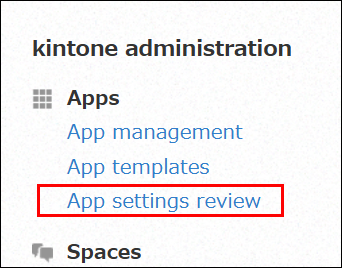
On the kintone administration screen, click App settings review.
-
On the App settings review screen, enter guidelines under Rules and guidelines for app settings.
-
If necessary, enter how you want the review results to be presented in the Tone and format for AI review section.
-
Click Save at the bottom right of the screen.